

Writer User Guide
This guide applies to FydeOS V23 and above. Writer is a built-in app that ships and updates with the system; there is nothing to install separately.
What is Writer?
Writer is the plain text editor built into FydeOS, for viewing and editing code, configuration files, logs and other plain text files. It opens multiple files as tabs and provides find and replace, encoding switching, line ending switching and printing. All processing happens locally on your device.
Features
- Multiple tabs, which can be reordered by dragging and renamed
- Find and replace with match case, whole word and regular expression options
- Switch file encoding and line endings from the status bar
- Adjustable font, font size, indentation and word wrap
- Light and dark themes, which can follow the system setting
The interface
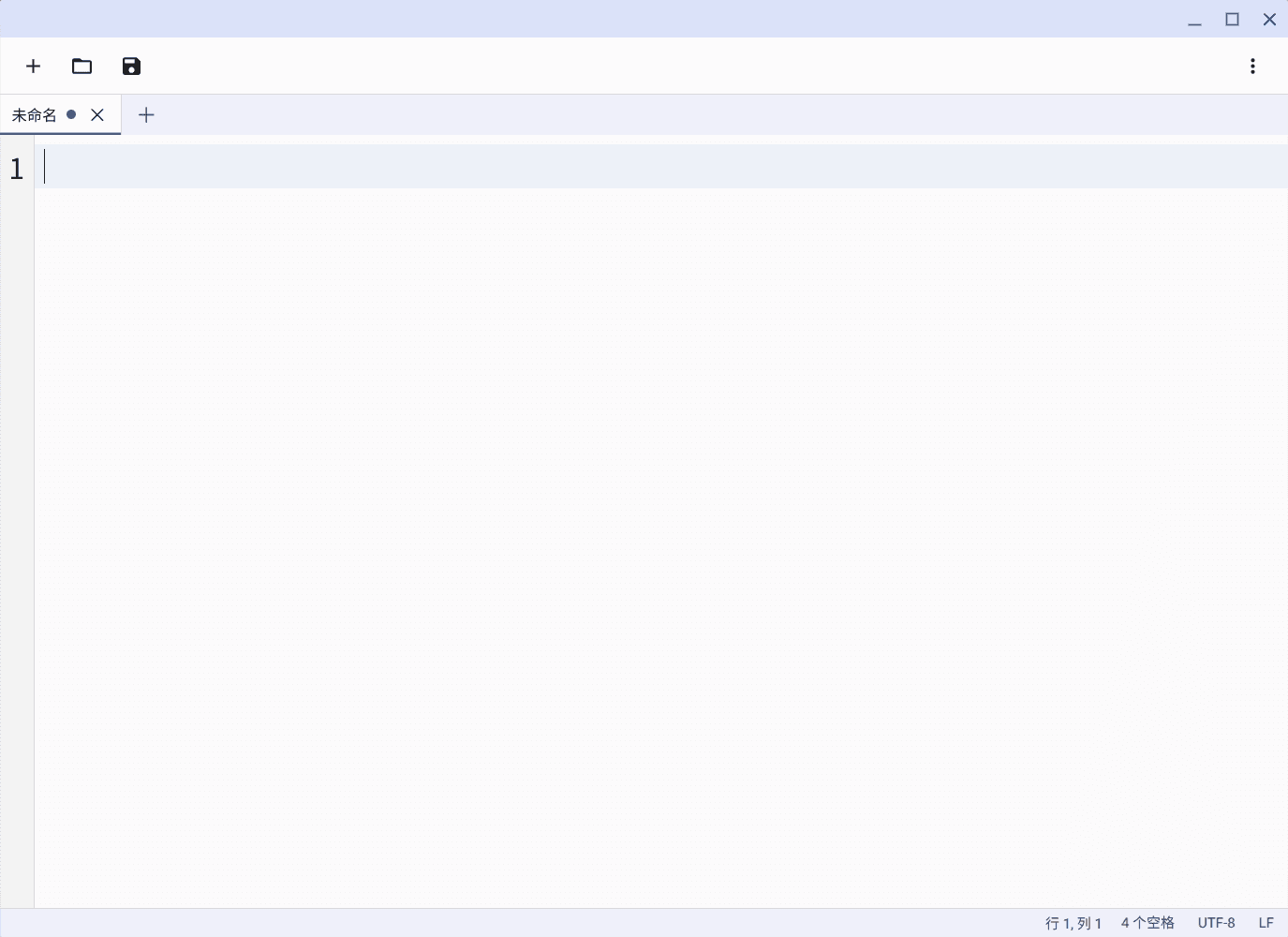
From top to bottom, the window has four parts:
- Toolbar: new, open, save, and the ”⋮” menu
- Tab bar: the files you currently have open
- Editing area: line numbers along the left edge
- Status bar: cursor position, indentation, encoding, line endings
Indentation, encoding and line endings can be changed by clicking them in the status bar.
Creating, opening and saving files
- New:
Ctrl+T - Open:
Ctrl+O - Save:
Ctrl+S - Save as:
Ctrl+Shift+S
You choose the location and file name the first time you save a new document. The default file name is Untitled.txt.
When you close a tab or window with unsaved changes, Writer asks first, so you can save, discard or cancel.
Working with tabs
- Close the current tab:
Ctrl+W - Switch tabs:
Ctrl+Tab,Ctrl+Shift+Tab - Reorder: drag a tab
- Rename: double-click a tab
A renamed tab uses the new name the next time you save it. Renaming a tab that has never been saved does not rename any file.
Keyboard shortcuts
| Action | Shortcut | Action | Shortcut |
|---|---|---|---|
| Save | Ctrl+S | Find | Ctrl+F |
| Save as | Ctrl+Shift+S | Replace | Ctrl+H |
| Open | Ctrl+O | Go to line | Ctrl+G |
| New tab | Ctrl+T | Ctrl+P | |
| Close tab | Ctrl+W | Increase font size | Ctrl+= |
| New window | Ctrl+N | Decrease font size | Ctrl+- |
| Switch tabs | Ctrl+Tab | Reset font size | Ctrl+0 |
How do I find and replace text?
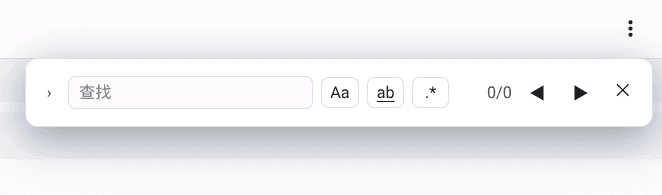
Press Ctrl+F to open the find bar. The three toggles to the right of the search box can be combined freely:
Aamatch caseabwhole word, so searching forcatdoes not matchcategory.*regular expression, so you can use patterns such as\d+or^foo
While the find bar is open, Enter jumps to the next match, Shift+Enter to the previous one, and Esc closes the find bar and returns to the text.
“Replace” replaces the current match only; “All” replaces every match. The number of matches is shown to the right of the search box — check it before replacing. If the regular expression has a syntax error, ! is shown in place of the count and nothing matches.
How do I change the file encoding?
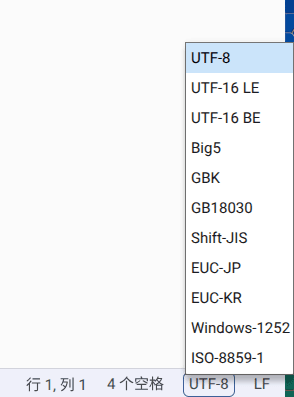
Writer opens every file as UTF-8 and does not try to detect the encoding. Click the encoding item in the status bar and pick the correct encoding; the text is immediately reinterpreted.
| Category | Encodings |
|---|---|
| Unicode | UTF-8, UTF-16 LE, UTF-16 BE |
| Chinese | Big5, GBK, GB18030 |
| Japanese | Shift-JIS, EUC-JP |
| Korean | EUC-KR |
| Western European | Windows-1252, ISO-8859-1 |
Switching the encoding only affects how the file is displayed; it does not modify the file. If you are unsure, the origin of the file is a good hint: traditional Chinese is usually Big5, simplified Chinese is usually GBK or GB18030, and Japanese is usually Shift-JIS.
How do I change the line endings?
The right end of the status bar shows the line endings of the current file, LF or CRLF. Click it to switch. LF is used on Linux, macOS and by most development tools; CRLF is used on Windows, and files saved by Notepad are usually CRLF.
Writer detects and displays the line endings already used in a file when it opens it. After switching manually, you need to save for the change to be written to the file.
How do I adjust the font, font size and indentation?
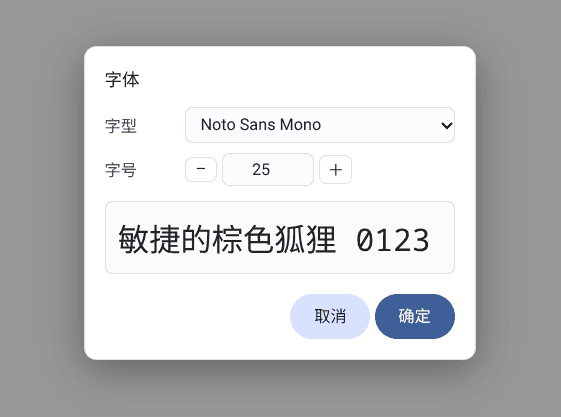
The font and font size are set in the font settings in the ”⋮” menu, with a live preview at the bottom of the dialog.
The font size can also be changed with shortcuts: Ctrl+= to increase, Ctrl+- to decrease, and Ctrl+0 to return to the default of 13.
Indentation is changed by clicking it in the status bar; you can choose tabs, or 2, 4 or 8 spaces.
All of these settings are stored on the device and still apply the next time you open Writer.
How do I choose a theme?
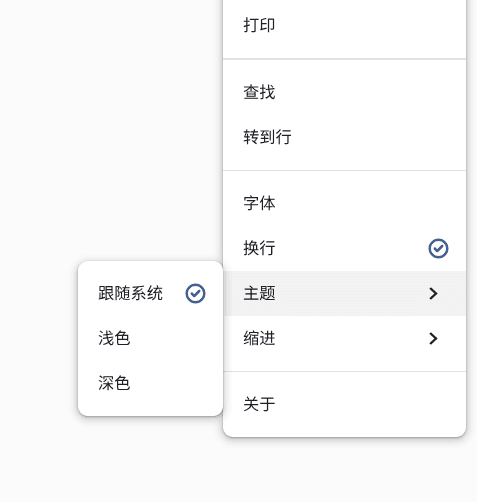
Choose a theme from the ”⋮” menu. There are three options:
- System (default): follows the system light/dark setting. Changing the system theme while the app is running takes effect immediately.
- Light, Dark: always use the chosen theme, regardless of the system setting.
How do I print?
Press Ctrl+P, or choose print from the ”⋮” menu. Only the text of the current tab is printed, without any interface elements. Margins are kept on all four sides and the text is forced to black, so a dark theme never prints as light text on white.
The URL, date and page numbers are controlled by the “Headers and footers” option in the system print dialog, and can be turned off in the print preview.
How does Writer protect your privacy?
- Editing, encoding conversion and find and replace all happen locally on the device; file contents are never uploaded
- Preferences such as font and theme are stored on the device only
- Writer can only access the files you explicitly open or save
Troubleshooting
”This looks like a binary file and cannot be edited as text.”
Writer only handles plain text files. When opening a file it checks the first stretch of bytes and refuses the file if it contains null bytes (NUL) or a large number of control characters. Images, executables, archives and database files are all rejected.
This check looks at the raw bytes rather than the decoded text, so text files in Big5, GBK, Shift-JIS and similar encodings are not rejected by mistake. Such files open normally, appear garbled at first, and display correctly once you switch the encoding.
”The file is too large to open.”
Writer can open files up to 10 MB.
”This file cannot be opened.” or “The file cannot be saved.”
The usual causes are that the file has been moved or deleted, or that its directory is not writable — for example a read-only external device or a system directory. When saving to an external device, check that the device is still connected.
Some text is still garbled after switching the encoding
Either the encoding is not the right one, or the file itself mixes several encodings. Try a related encoding — for example GB18030 instead of GBK, as it covers more Chinese characters.
How do I report a problem?
When reporting a problem, please include: your device model, your FydeOS version, and the steps to reproduce it.