
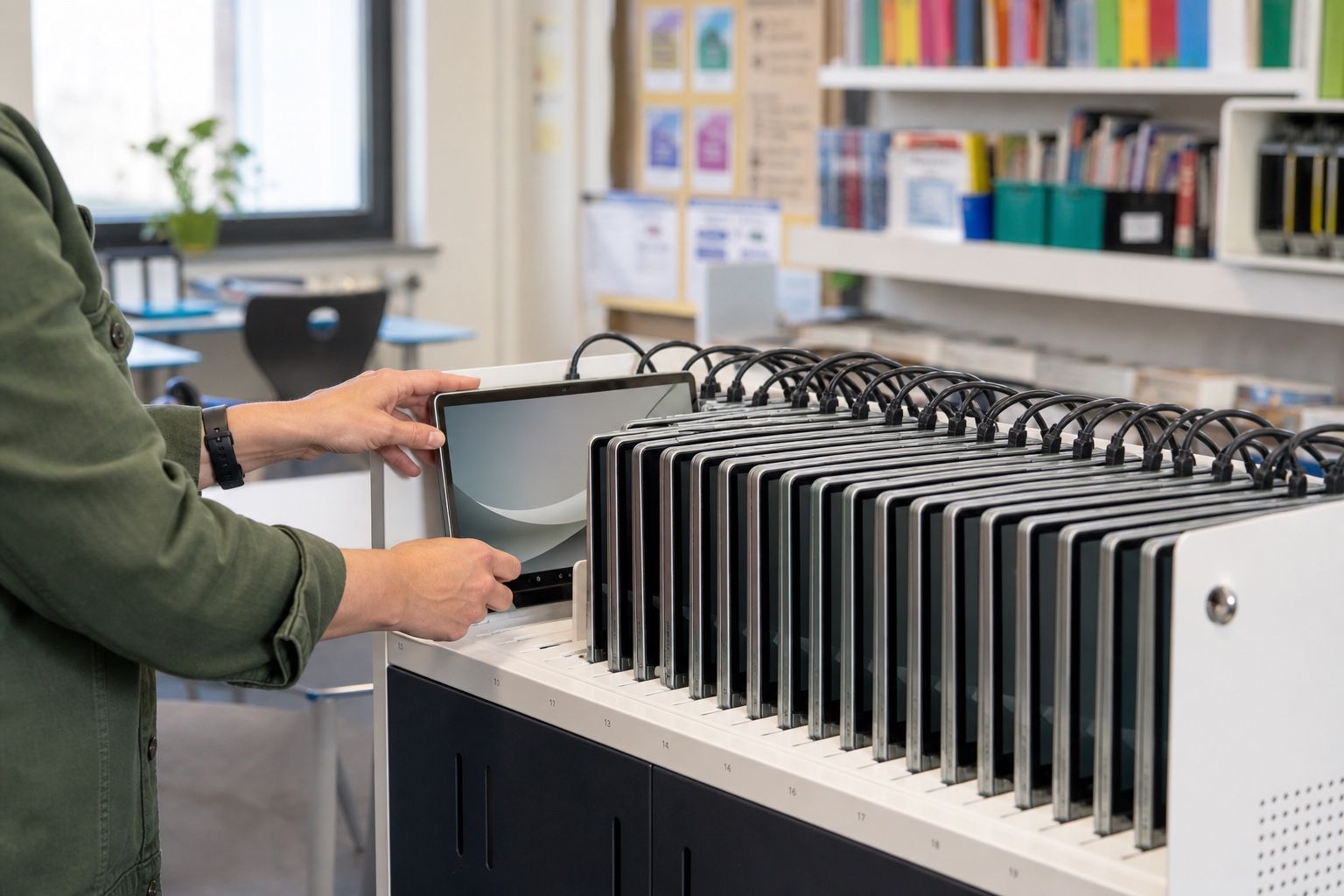
A shared classroom device must be simple enough for a pupil to start using quickly and controlled enough for the next pupil to receive a predictable session. Achieving both requires more than installing an operating system: the school needs an account model, application set, network design, safeguarding rules and a clear handover process.
This guide helps school leaders, teachers and IT teams plan those decisions together.
1. Start with the classroom routine
Observe how a lesson actually begins and ends. Record who distributes devices, how pupils sign in, where work is saved, how teachers share resources, what happens when a password is forgotten and how devices are collected and charged.
Different locations may need different models:
- a device assigned to one pupil for a term;
- a trolley shared between classes;
- a computer room used by several year groups;
- a library or reception device with temporary access;
- a classroom display or single-purpose assessment station.
Do not force all of these into one session policy.
2. Choose an identity model deliberately
For work that must follow a pupil, individual sign-in provides a personal identity and access to approved cloud services. A shared device does not require a shared account.
For temporary, sign-in-free access, FydeOS supports Managed Guest Session on an appropriate Business plan. The session can be configured to start automatically, provide selected applications and end after a defined duration. Schools still need to test exactly what local data, downloads and cloud activity remain when a session ends.
The official Managed Guest Session guide describes current configuration options.
Document which model applies to each device group and who owns account creation, suspension, password recovery and leaver handling.
| Model | Best suited to | Identity | Data after sign-out | School responsibility |
|---|---|---|---|---|
| Assigned device | One pupil uses the device for an extended period | Individual pupil account | Depends on the account, application and storage policies | Account lifecycle, device loss and end-of-assignment reset |
| Individual sign-in on a shared device | Several pupils use the same device at different times | Each pupil uses an individual account | Verify local files, browser state and application data after sign-out | Identity support, sign-out rules and handover testing |
| Managed Guest Session | Temporary or task-focused access without an account | No individual sign-in | Session is designed to reset when it ends; verify application and cloud behaviour | Session duration, allowed apps, local data and safeguarding controls |
3. Test complete learning activities
Build the application list from lesson plans, not from a generic catalogue. For each activity, test:
- pupil and teacher sign-in;
- opening, editing, saving and submitting work;
- camera, microphone and audio permissions;
- video playback and conferencing;
- touch, stylus and accessibility tools;
- printing, projection and classroom displays;
- restricted websites and content filtering;
- application behaviour after sign-out or session timeout.
FydeOS supports browser-based tools and, on suitable editions and hardware, Android and Linux applications. Every required app and licence should be confirmed on representative devices before a wider rollout.
4. Design network and safeguarding controls together
School filtering, DNS, proxy, certificates and wireless capacity can affect lessons as much as the device itself. Test at lesson scale: thirty simultaneous sign-ins or video streams reveal different problems from one device in an IT office.
Bring safeguarding, privacy and IT owners into the policy design. Decide:
- which sites and application types are allowed;
- whether screenshots, downloads, external storage or printing are restricted;
- how pupil activity is handled under school policy;
- where work is stored and how long it is retained;
- how a lost or damaged device is reported;
- when remote support may view or control a device.
No endpoint platform makes a school compliant by itself. The school remains responsible for its policies, data processing and statutory obligations.
5. Validate the physical classroom setup
Shared devices fail operationally when charging, storage and accessories are ignored. Confirm:
- numbered devices and matching storage slots;
- chargers, cables and safe charging capacity;
- protective cases and cleaning process;
- Wi-Fi coverage in the actual classroom;
- stylus, headset and adapter ownership;
- a rapid way to identify a damaged or missing device;
- spare devices for lessons that cannot wait for repair.
6. Make handover observable
Test the transition from one pupil to the next:
- The first pupil saves or submits work.
- The pupil signs out or the managed session ends.
- Local files, browser state and application data behave as policy requires.
- The next pupil receives the correct start screen and cannot access the previous pupil's work.
- The device returns to charging or the next lesson.
Repeat this with interrupted Wi-Fi, a forced restart and a forgotten sign-out. Document the action the teacher should take in each case.
7. Pilot with teachers and pupils
Choose a small number of lessons that represent different requirements. Include teachers who are comfortable with technology and teachers who need a straightforward routine. Provide one support route and record every interruption.
Useful acceptance measures include:
- time from device distribution to lesson-ready state;
- successful sign-in and submission rates;
- number of teacher interventions;
- devices unavailable at the start of a lesson;
- support incidents by root cause;
- successful sign-out and handover tests;
- teacher and pupil feedback collected after real use.
The J. A. Komenského school project shows how one school prepared donated Surface Pro 7 devices through model-level testing before classroom rollout. Read the education case study.
School deployment checklist
- Each classroom scenario has an assigned sign-in model.
- Pupils use individual identities where personal work is required.
- Every required lesson activity is tested end to end.
- Filtering, Wi-Fi and certificates are tested at class scale.
- Safeguarding, privacy and remote-support rules are approved.
- Charging, storage, accessories and spares are organised.
- Sign-out and next-pupil handover are verified.
- Teachers and pupils participate in a representative pilot.
Test one complete school day
Schools reusing donated or existing computers should also complete the older PC compatibility checklist.
Prepare a device model, account workflow and list of essential teaching activities for a FydeOS Enterprise education trial. The best pilot tests a normal school day, not an empty device in a meeting room.